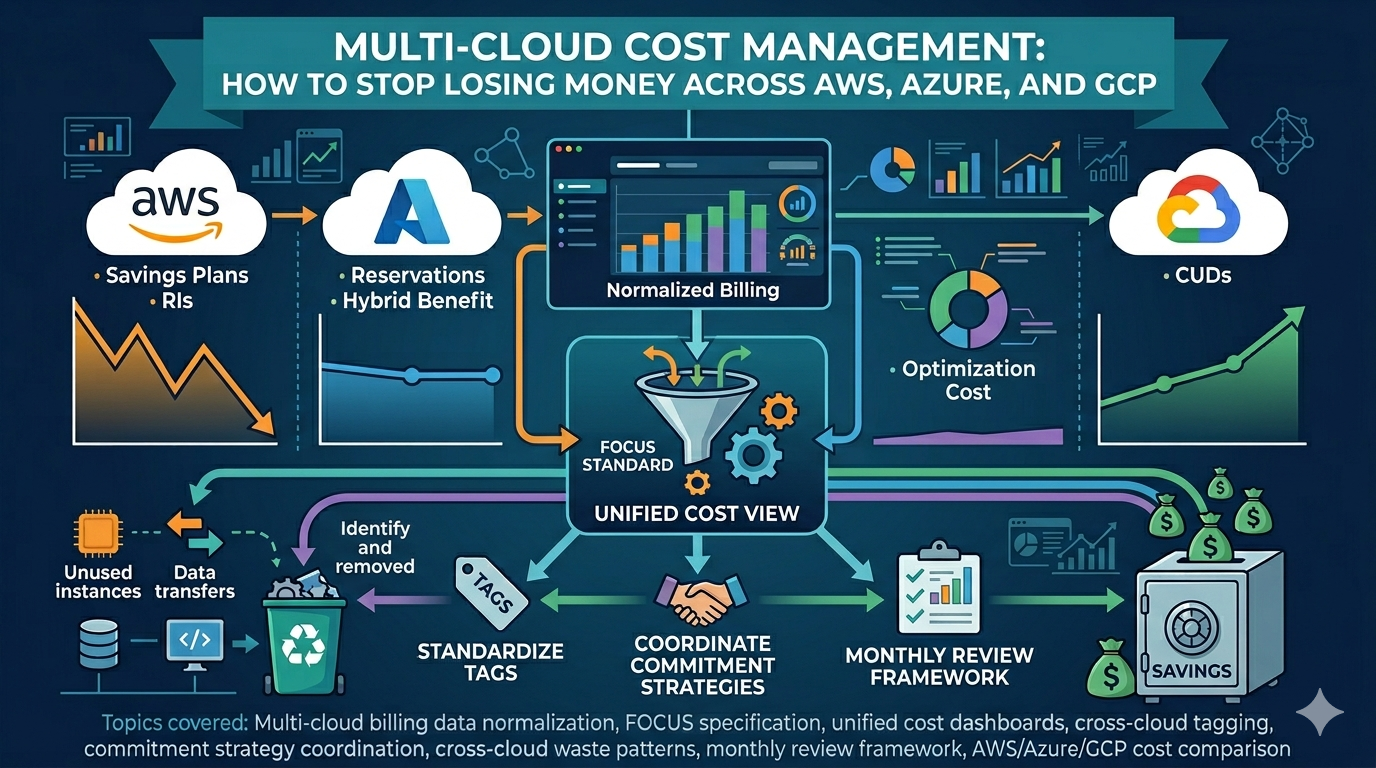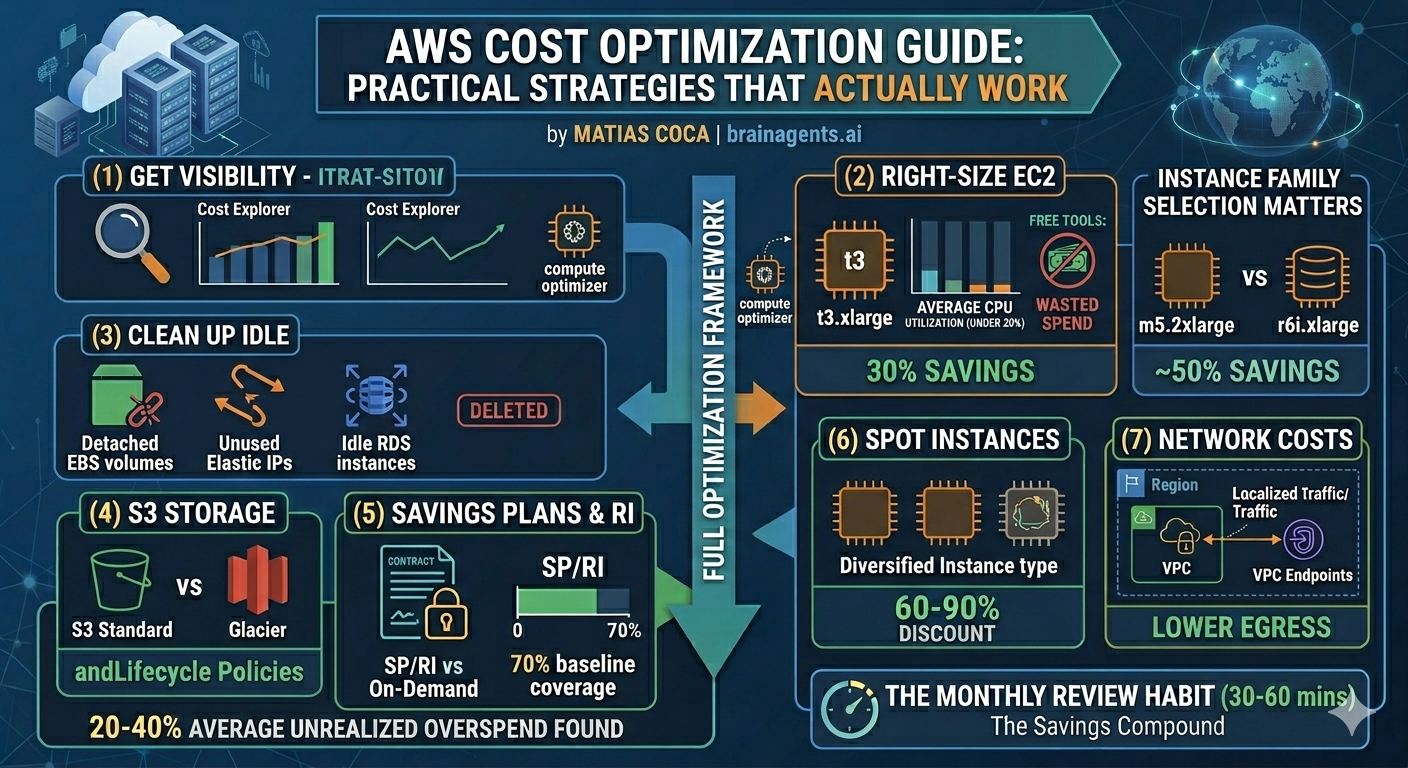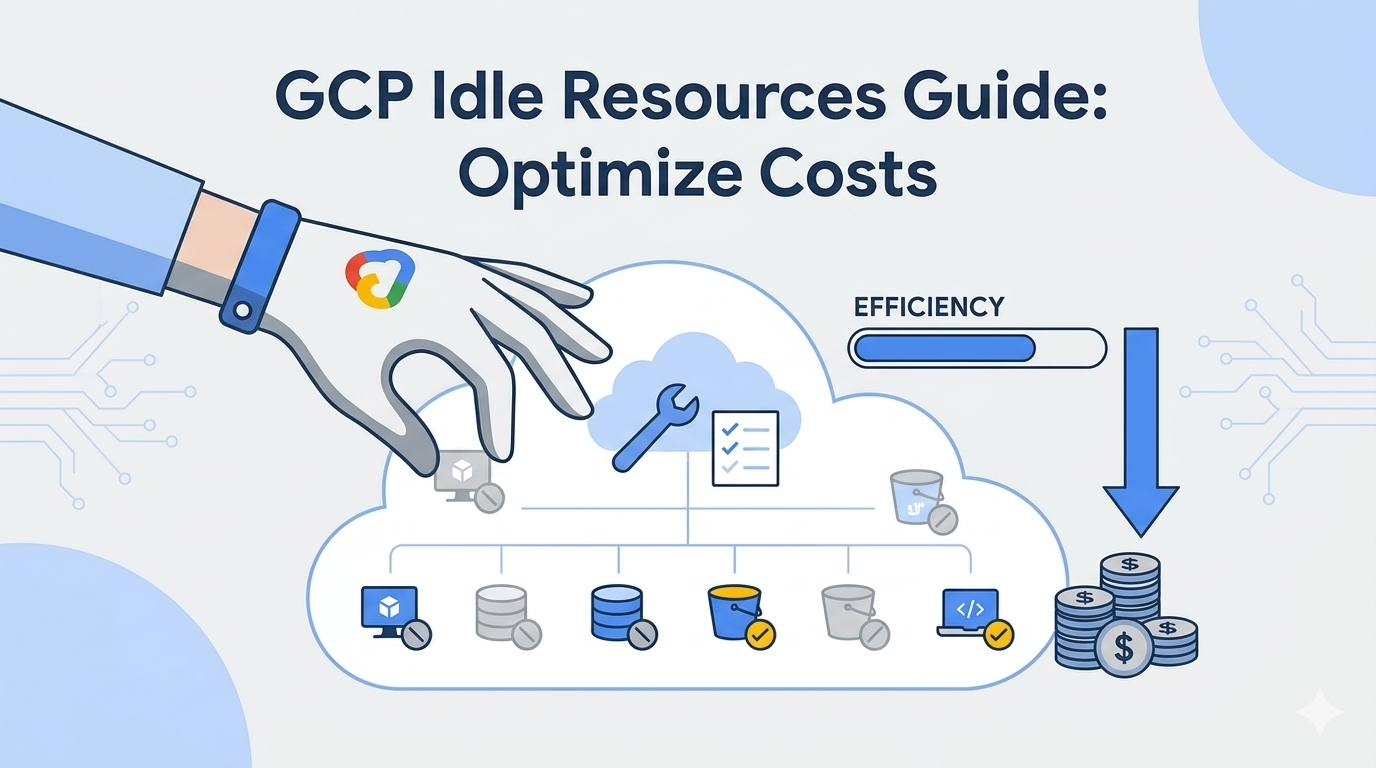
Idle resources are pure waste. That test VM from three months ago? Still running. The disk from a deleted instance? Still charging. The static IP you reserved "just in case"? Still costing money.
These forgotten resources accumulate silently. Most companies discover 10-20% of their cloud spend is waste—resources running but unused.
This guide shows you how to find idle resources, safely eliminate them, and prevent the problem from recurring.
The Cost of Idle Resources
Before hunting for waste, understand what you're looking for:
| Resource Type | Typical Monthly Cost | How It Goes Idle |
|---|---|---|
| Idle VM (n2-standard-2) | $50-100 | Test environment forgotten |
| Unattached persistent disk (100GB SSD) | $17 | VM deleted, disk kept |
| Unused static IP | $7.30 | Reserved but not attached |
| Idle Cloud SQL (db-n1-standard-1) | $50-150 | Dev database not used |
| Old snapshots (100GB) | $2-5 | Backup policy without cleanup |
| Unused load balancer | $18+ | Service deprecated |
Method 1: Google Cloud Recommender (Free)
Google's Recommender uses machine learning to identify waste automatically. Start here.
How to Access Recommender
Console path: Search "Recommendations" in the Console search bar, or navigate to Home → Recommendations in the left sidebar
Or by service: Compute Engine → VM instances → look for recommendation icons (lightbulb) next to individual resources
Types of Cost Recommendations
| Recommendation | What It Finds | Threshold |
|---|---|---|
| Idle VM | VMs with very low CPU | <5% CPU for 14+ days |
| Idle persistent disk | Disks not attached | Unattached for 30+ days |
| Idle Cloud SQL | Databases with no connections | Low connections for 14+ days |
| Oversized VM | VMs using fraction of capacity | <50% CPU utilization |
| Idle IP address | Reserved IPs not attached | Not attached to resource |
Recommender Limitations
- Only surfaces obvious waste (thresholds are conservative)
- Must check manually (no proactive alerts by default)
- Doesn't catch all types of idle resources
- Per-project view only
Method 2: Manual Audit Checklist
Recommender catches obvious waste. Manual audits catch the rest.
Compute Engine VMs
What to check:
- VMs created months ago (old test environments)
- VMs with generic names (test-vm-1, temp-instance)
- VMs in dev/staging that should be stopped overnight
Verification: Check Cloud Monitoring for actual CPU usage over last 30 days.
Persistent Disks
What to look for: Disks not attached to any VM.
Common causes:
- VM deleted but disk preserved
- Snapshot restored but original disk kept
- Manual disk creation that was never used
Static IP Addresses
What to check: IPs with status "RESERVED" (not attached to anything). You pay $7.30/month for each unused IP.
Snapshots
What to check:
- Snapshots older than retention policy
- Snapshots of deleted disks
- Manual snapshots that were never cleaned up
Cloud SQL Instances
What to check:
- Dev/test databases left running
- Databases for deprecated applications
- Oversized tiers for actual usage
Load Balancers
What to check:
- Load balancers with no healthy backends
- Load balancers for deprecated services
- Duplicate load balancers
Method 3: BigQuery Analysis (If Billing Export Enabled)
If you have billing export to BigQuery enabled, you can find expensive idle resources directly.
Find Resources with Consistent Low Usage But High Cost
SELECT
resource.name AS resource_name,
service.description AS service,
ROUND(SUM(cost), 2) AS monthly_cost
FROM your-project.billing_export.gcp_billing_export_resource_v1_XXXXXX
WHERE invoice.month = FORMAT_DATE('%Y%m', DATE_SUB(CURRENT_DATE(), INTERVAL 1 MONTH))
AND resource.name IS NOT NULL
GROUP BY resource_name, service
HAVING monthly_cost > 20
ORDER BY monthly_cost DESC
LIMIT 50
This query finds resources costing more than $20/month. Adjust the threshold based on your needs—use a lower value (e.g., > 10) for tighter cost control, or higher (e.g., > 50) to focus only on significant waste.
Cross-reference this list with actual usage in Cloud Monitoring.
Safe Deletion Process
Before deleting anything, follow this process to avoid incidents.
Step 1: Verify Resource is Actually Idle
Don't rely solely on metrics. Verify with:
- Logs: Check Cloud Logging for recent access
- Users: Ask the team if anyone uses it
- Dependencies: Check if other services reference it
Step 2: Tag for Deletion (Don't Delete Immediately)
Add a label indicating planned deletion date. Wait at least a week.
Step 3: Stop Instead of Delete (For VMs)
For VMs, stop first. This eliminates compute cost while preserving the disk. Wait a week. If no one complains, proceed to delete.
Step 4: Create Snapshot Before Deleting Disks
Before deleting any disk, create a final backup snapshot.
Step 5: Delete and Document
After verification period, delete the resource. Document what was deleted, when, and why.
Prevention: Stop Waste Before It Starts
Finding idle resources is reactive. Prevention is better.
1. Enforce Labels on Resource Creation
Require labels for:
owner: Who created this (email)environment: prod, staging, dev, testexpiry: When should this be reviewed
Use Organization Policy or Terraform validation to enforce.
2. Set Expiration Policies
For test/dev resources, set clear expiration:
- Dev VMs: Auto-delete after 7 days
- Test environments: Auto-stop nightly
- Snapshots: Auto-delete after 30 days
3. Budget Alerts by Project
If a dev project suddenly costs more than expected, alert immediately. Don't wait for monthly reviews.
4. Monthly Cleanup Ritual
Add "resource cleanup" to monthly processes:
- Check Recommender
- Review resources older than 90 days
- Audit unlabeled resources
- Verify scheduled deletions completed
5. Use Ephemeral Environments
Instead of persistent dev environments, use:
- Cloud Workstations (auto-stop after idle)
- Ephemeral GKE namespaces
- Terraform workspaces that destroy on PR merge
Key Takeaways
- Idle resources are typically 10-20% of cloud spend—worth finding
- Start with Recommender—it catches obvious waste for free
- Manual audits catch what Recommender misses
- Stop before delete—validate nobody needs it
- Automate enforcement—manual cleanup doesn't scale
- Prevent is better than cure—labels, expiration, ephemeral environments
Want automated idle resource detection across all your GCP projects? GCP FinOps surfaces idle resources and tracks cleanup progress.
Related Articles: