
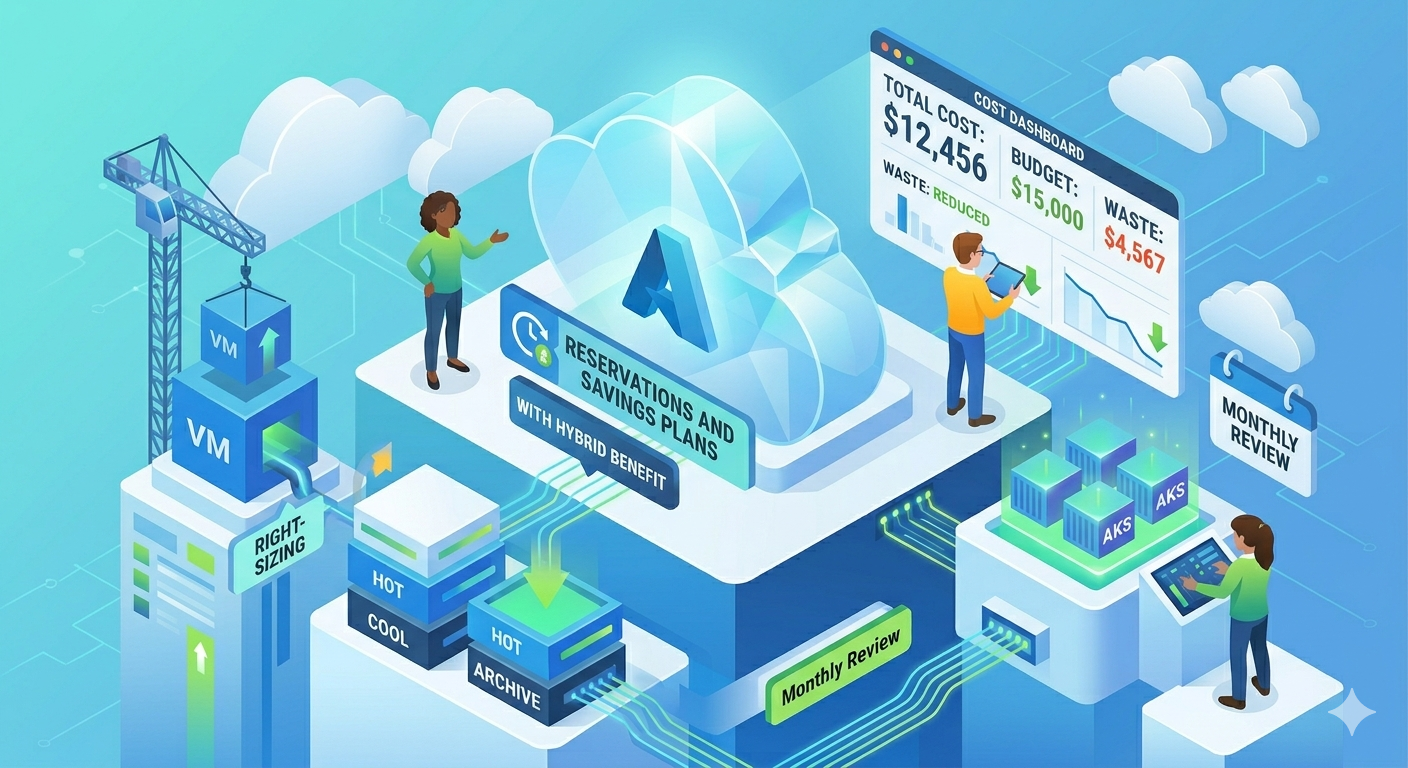
Azure bills have a habit of growing in places nobody is looking. You right-size the VMs, you think the hard work is done, and then Log Analytics ingestion, Cosmos DB RUs, ExpressRoute egress, and a few forgotten App Service staging slots quietly push the bill past budget. Azure's pricing model is powerful but deeply layered (Reservations, Savings Plans, Hybrid Benefit, Spot, burstable tiers, and per-service quirks all stack on top of each other), which makes it easy to leave 20 to 40 percent on the table without realizing it.
This guide covers practical strategies to reduce Azure spend. No enterprise tooling required. No six-month transformation plan. Just the optimizations that consistently deliver the biggest savings for teams managing cloud costs without a dedicated FinOps team.
Why Azure Costs Get Out of Control
Before jumping into fixes, it helps to understand why Azure bills spiral:
- Three overlapping discount mechanisms: Reservations, Savings Plans, and Hybrid Benefit can all apply to compute, and picking the wrong one (or doubling up badly) costs money every hour. Most teams never fully understand which discount covers which workload.
- Cost Management is powerful but buried: Azure Cost Management gives you budgets, alerts, and exports for free, but it is not on by default in any meaningful way. Without scopes, tags, and exports configured, you see a total and nothing actionable.
- Managed services hide the real cost: Cosmos DB RUs, Log Analytics ingestion, and App Service premium tiers bill on dimensions that are hard to predict until you have real workload data. Teams estimate these wrong in the pricing calculator and then get surprised.
- Non-production environments run 24/7: Dev, test, and staging environments provisioned with production-grade SKUs and never shut down are the single largest source of waste I see on Azure.
- Networking and egress: Inter-region transfer, ExpressRoute data charges, and Private Link per-hour fees are the taxes nobody budgets for. They do not show up as a single line item you can fix — they bleed across services.
Step 1: Get Visibility Right
You cannot optimize what you cannot see. Azure provides several free tools for cost visibility, and the trick is knowing which ones matter and how to configure them so the data is actually usable.
Open Cost Management and Set Your Scope
Azure Cost Management is free and lives under the billing scope. The first thing to get right is the scope you are looking at: billing account, billing profile, management group, subscription, or resource group. Most teams stare at a single subscription and miss the fact that costs are scattered across several.
Go to Cost Management + Billing → Cost analysis and set the scope to the highest level you manage. If you have multiple subscriptions, pin a view at the management group level so one-click gives you the whole picture.
What to look for first:
- Daily cost trend: Is spend stable, growing, or spiking?
- Top 5 services: Where is most of the money going? Usually VMs, storage, SQL, Log Analytics, or AKS.
- Top resource groups: Which workloads dominate? This is often more actionable than "top services."
- Unattributed cost: Anything without your required tags is a red flag.
Set Up Tags and Enforce Them
Tags are the foundation of cost attribution. Without them, you know THAT money was spent but not WHERE or BY WHOM.
Recommended tags:
| Tag | Purpose | Example |
|---|---|---|
Environment | Separate prod from dev and staging | production, staging, dev |
CostCenter | Attribute costs to business units | platform, data, marketing |
Owner | Accountability | [email protected] |
Workload | Track spend by initiative | customer-api, ml-pipeline |
Important: Tags are not retroactive. Costs before tag activation are unattributed and you cannot get them back. Start tagging now — every month you wait is data you lose.
Enable Budgets and Cost Alerts
Set a budget at the subscription or management group level and wire the alerts to an email list that actually gets read. The Azure default is to alert at 80 percent and 100 percent of the budget. Add a third alert at 50 percent so you have time to react before the number is scary.
Setup: Cost Management → Budgets → Add → set amount, period, and alert thresholds.
Configure Cost Exports to Storage
This is the step most teams skip and it is the most valuable one. Configure a daily export of cost data to an Azure Storage account, then either query it with Synapse or pipe it into your own analytics layer. The Cost Management portal is fine for exploration but terrible for actual analysis across long time windows.
Setup: Cost Management → Exports → Create → choose daily export, pick a storage account, set the format to Parquet if you have the option. Exports are free.
Once exports are running you can answer questions like "what did customer X cost us last quarter" or "which service line is growing fastest" without waiting for the portal to render. This is the foundation for real FinOps.
Step 2: Right-Size Virtual Machines
VMs are typically the largest line item on Azure bills, and most of them are oversized. The default instinct is to pick a B-series or D-series based on peak load estimates and never revisit.
How to Find Oversized VMs
Azure Advisor (free) analyzes VM usage over the past 14 days and recommends resize or shutdown actions. Go to Advisor → Cost and you will usually find a list of VMs flagged as underutilized.
What to look for:
- Average CPU under 40 percent → likely oversized
- Memory utilization consistently under 50 percent → consider a smaller memory-optimized SKU
- Network throughput well below the SKU's limit → you are paying for bandwidth nobody uses
- VMs with 0 percent CPU for 7 days → deallocate or delete
Advisor's recommendations are conservative. If you are confident in your workload patterns, you can often resize more aggressively than it suggests.
VM Family Selection Matters
Picking the right VM family is often more impactful than just sizing down. Azure has a confusing number of SKUs, and the naming convention is not intuitive.
| Workload | Common Mistake | Better Choice | Savings |
|---|---|---|---|
| Web servers | D-series (general purpose) | F-series (compute optimized) | 30-45% |
| Databases | D-series (memory-starved) | E-series (memory optimized) | Better performance per $ |
| Dev/test | Same SKU as production | B-series burstable | 50-70% |
| Batch processing | On-demand D-series | Spot D-series | 60-90% |
| ARM-friendly workloads | D-series (Intel) | Dpsv5 / Epsv5 (ARM-based) | ~20% |
Use B-series for Variable Workloads
The B-series burstable VMs are one of the most underused SKUs on Azure. They accumulate CPU credits when idle and spend them when busy, which makes them ideal for dev boxes, low-traffic web servers, and anything that spends most of its time waiting. If your average CPU is below 20 percent, a B-series will likely save you 50 percent or more with no performance hit on the workloads that actually need the credits.
Shut Down What You Do Not Need
This sounds obvious and almost nobody does it well. Dev and test environments do not need to run outside business hours.
- Auto-shutdown is built into every VM. Go to the VM → Operations → Auto-shutdown and set a schedule.
- Dev/Test Labs give you per-user environments with shutdown schedules baked in.
- Azure Automation runbooks can start and stop VMs at the subscription level on a schedule.
Step 3: Reservations, Savings Plans, and Hybrid Benefit
Azure offers three overlapping discount mechanisms for compute. Picking the wrong one costs money, and understanding when to use each is where most teams lose hundreds of dollars a month.
Azure Savings Plans for Compute (Recommended for Most Teams)
Savings Plans are the newest option and the simplest. You commit to a fixed hourly spend for 1 or 3 years, and any eligible compute usage up to that commitment gets discounted up to 65 percent.
Why most teams should start here:
- Flexible across VM SKUs, regions, and operating systems
- Covers VMs, Container Instances, Dedicated Hosts, and App Service Premium v3
- No commitment to specific instance types — you can resize freely
Rule of thumb: Commit to 70-80 percent of your stable baseline hourly compute spend. Let the rest run on-demand to handle variability.
Reserved Instances (Still Useful for Specific Cases)
Reservations offer slightly deeper discounts than Savings Plans but are locked to a specific VM family and region.
When Reservations still make sense:
- Steady workloads on a specific SKU that will not change for a year or more
- SQL Database and SQL Managed Instance (Savings Plans do not cover these the same way)
- Cosmos DB provisioned throughput (RU reservations)
- Synapse Dedicated SQL Pools
- Azure Cache for Redis
Azure Hybrid Benefit
If your organization has existing Windows Server or SQL Server licenses with Software Assurance, Hybrid Benefit lets you bring them to Azure and skip the per-hour license charge on VMs and SQL databases. Savings are often 40 percent on Windows VMs and up to 55 percent on SQL.
How to check eligibility: Any VM running Windows with an existing license. Go to the VM → Configuration → Azure Hybrid Benefit and toggle it on. For SQL, the toggle is on the database settings page.
This is a near-zero-effort optimization that teams routinely forget about. If you have the licenses, enable it everywhere it is eligible.
The Math That Matters
For a team spending $10,000 a month on Azure compute (mostly Windows VMs):
| Strategy | Monthly Cost | Annual Savings |
|---|---|---|
| All on-demand, no Hybrid Benefit | $10,000 | $0 |
| Savings Plan (70% coverage, 1yr) | $7,400 | $31,200 |
| Savings Plan + Hybrid Benefit | $5,200 | $57,600 |
| Savings Plan + Hybrid Benefit (3yr) | $4,100 | $70,800 |
Step 4: Clean Up Idle and Orphaned Resources
Idle resources are the easiest savings. You are paying for things nobody uses. Common culprits on Azure:
Unattached Managed Disks
When you delete a VM, its data disks often survive. They keep costing money even with no VM attached.
How to find them: Azure Resource Graph Explorer and run:
resources
| where type =~ "microsoft.compute/disks"
| where properties.diskState == "Unattached"
| project name, resourceGroup, size=properties.diskSizeGB, sku=sku.name
Typical waste: A 1 TB Premium SSD costs around $135 a month. Five unattached disks is $675 a month for nothing.
Before deleting: Create a disk snapshot if you are unsure. Snapshots cost a fraction of live disks.
Unused Public IPs
An unassociated Public IP address costs around $3.60 a month each. They accumulate quickly because every time you delete a VM or load balancer, the associated IP often survives.
How to find them: Portal → Public IP addresses → filter by "Not associated." Delete anything you do not recognize.
Idle SQL Databases
SQL databases running 24/7 with no traffic are common — dev databases, staging environments, databases from decommissioned projects.
How to find them: SQL Database → Metrics → DTU percentage or CPU percentage. Any database consistently below 5 percent utilization for 2 weeks is a candidate.
Options:
- Scale down to a smaller tier
- Move to serverless (SQL Database serverless pauses when idle, bills per second when active)
- Export and delete for databases you might need again later
Orphaned Network Interfaces and Disks from ARM Templates
Deployments that fail halfway leave behind NICs, disks, and sometimes public IPs. These accumulate silently in the resource group and nobody notices because they do not appear as VMs.
Old Snapshots
Snapshots are cheaper than live disks but still cost money, and most teams forget they exist. Audit snapshots older than 90 days and delete anything where the source disk no longer exists.
Step 5: Optimize Storage Costs
Storage looks cheap per GB and becomes expensive at scale. The combination of access tiers, redundancy options, and transaction costs makes Azure Blob Storage a place where teams leave a lot of money on the table.
Use Access Tiers and Lifecycle Management
Most blob data follows a predictable access pattern: hot for the first 30 days, cool for 90 days, then rarely or never.
Recommended lifecycle policy:
| Age | Access Tier | Approximate Cost per GB/month |
|---|---|---|
| 0-30 days | Hot | $0.018 |
| 30-90 days | Cool | $0.010 |
| 90-180 days | Cold | $0.0036 |
| 180+ days | Archive | $0.00099 |
How to implement: Storage account → Data management → Lifecycle management → Add rule. Azure handles the tier transitions automatically.
Pick the Right Redundancy
Azure gives you five redundancy options: LRS, ZRS, GRS, RA-GRS, and GZRS. Each step up roughly doubles the storage cost.
- LRS (locally redundant): Cheapest. Three copies in one datacenter. Good for non-critical data and for data you can regenerate.
- ZRS (zone redundant): Three copies across availability zones in one region. Good balance for production data.
- GRS / RA-GRS (geo redundant): Copies in a paired region. Use only when you genuinely need cross-region disaster recovery, not because it sounds safer.
Managed Disks: Standard vs Premium vs Ultra
Premium SSD is the default people reach for and it is overkill for most workloads. Standard SSD is about 60 percent cheaper and performs well for anything that is not I/O bound. Ultra Disk is expensive and only makes sense for databases with strict IOPS requirements.
Rule of thumb: Start with Standard SSD, monitor IOPS and latency, and upgrade to Premium only if the workload actually needs it.
Step 6: Networking and Egress Traps
Data transfer is the hidden tax on Azure bills. Ingress is free, but everything else costs money, and the way Azure bills for networking is genuinely confusing.
| Transfer Type | Approximate Cost |
|---|---|
| Internet egress (first 10 TB) | $0.087/GB |
| Cross-region transfer | $0.02/GB |
| Cross-availability-zone transfer | $0.01/GB each way |
| VNet peering (intra-region) | $0.01/GB each way |
| ExpressRoute data out | Varies by tier |
| Private Link per-hour fee | $0.01/hour per endpoint |
Quick Wins for Network Costs
- Colocate services in the same region and AZ — cross-AZ transfer adds up fast when you have chatty microservices.
- Use Service Endpoints and Private Link strategically — Private Link endpoints cost $0.01 an hour each and a handful across many resource groups becomes real money.
- Audit VNet peering — every GB crossing a peering link is billed in both directions. Peering a dev VNet to a data VNet can double your bill without anyone noticing.
- Compress responses — gzip and brotli compression reduce transfer volume by 70-80 percent, which hits egress directly.
- Use Azure Front Door or CDN for public-facing content — cheaper egress rates than serving directly from Blob Storage or App Service.
Step 7: Databases — SQL, Cosmos DB, and Beyond
Database costs on Azure deserve their own treatment because the pricing models are so different from compute.
Azure SQL Database: DTU vs vCore
The DTU model bundles compute, memory, and IO into a single abstract unit, which makes it simple to pick but hard to tune. The vCore model exposes the underlying resources and lets you scale compute and storage independently, which is almost always cheaper once you have real workload data.
Rule of thumb: Start on DTU for simplicity, move to vCore as soon as you have a month of usage data, and use Hyperscale for databases that need more than 4 TB or fast backup and restore.
Elastic Pools for Multi-Tenant Workloads
If you run many small SQL databases with variable load (common for multi-tenant SaaS), elastic pools let them share a pool of DTU or vCore capacity. This is one of the highest-impact optimizations on Azure SQL and it is routinely overlooked.
Serverless for Dev and Spiky Workloads
Azure SQL Serverless auto-pauses when idle and bills per second when active. It is ideal for dev, staging, and spiky production workloads. The minimum cost is roughly $0 when idle, which makes it dramatically cheaper than provisioned tiers for databases that are not continuously active.
Cosmos DB: Right-Size RUs
Cosmos DB is the service that catches everyone. RUs are hard to estimate up front and easy to overprovision. A few principles that move the needle:
- Check partition key distribution. Hot partitions force you to overprovision RUs to handle spikes. Use the portal's partition key metrics to find skew.
- Autoscale vs provisioned. Autoscale is only cheaper if your load is genuinely spiky. For steady load, provisioned throughput is cheaper.
- Enable the integrated cache for read-heavy workloads. It can slash RU consumption dramatically.
- Serverless mode works well for small databases or genuinely bursty workloads that tolerate occasional throttling.
- Reserve RUs if you have a stable baseline. Cosmos DB reservations offer up to 65 percent discount.
Step 8: AKS and Container Cost Control
AKS costs are the sum of VM node costs, load balancers, persistent volumes, and the small control plane fee for the uptime SLA. The levers are all on the node pools.
Use Multiple Node Pools
Split your workloads across a system node pool (small, general purpose) and one or more user node pools sized for the actual workloads. This prevents you from paying for oversized nodes because one pod needed more memory.
Spot Node Pools for Fault-Tolerant Workloads
Spot node pools use Azure Spot VMs at 60-90 percent discount. Ideal for batch jobs, CI runners, and stateless workloads with good restart handling. Taint them so only workloads that explicitly tolerate interruption land there.
Cluster Autoscaler and KEDA
The cluster autoscaler scales node pools up and down based on pending pods. Enable it. Combine with KEDA for event-driven scaling (queue length, HTTP traffic, database metrics), which lets you scale workloads to zero during idle periods.
Right-Size Pod Requests and Limits
The most common AKS waste is oversized pod requests that force the cluster to provision nodes it does not really need. Look at actual CPU and memory usage in Container Insights and tune requests down to realistic values. A 30 percent reduction in requests often translates into 20-30 percent fewer nodes.
Step 9: Log Analytics and Monitoring Costs
Log Analytics ingestion is the line item that bites teams they were not watching. The default verbose settings across a fleet of services can push ingestion into hundreds of dollars a day, and by the time it shows up on the bill you have weeks of data you did not want to keep.
Set a Daily Cap
Every Log Analytics workspace supports a daily ingestion cap. Set it. Even a generous cap protects you from a runaway logger that would otherwise add thousands to the bill.
Setup: Log Analytics workspace → Usage and estimated costs → Daily cap.
Control What You Ingest
Not everything needs to live in Log Analytics. Review your diagnostic settings and drop the noisy categories you never query. Common offenders are AzureActivity at very high verbosity, AppService console logs, and verbose AKS container logs.
Use Basic Logs and Archive Tiers
Log Analytics has a Basic Logs tier (much cheaper, reduced query capability) and Archive (cheapest, rehydrate to query). Move low-value logs into Basic or Archive. Logs you only need for audit purposes almost never belong in the Analytics tier.
Check Application Insights Sampling
Application Insights can send a lot of telemetry. Enable adaptive sampling so you capture a representative subset instead of every transaction. This alone can cut App Insights ingestion in half with no loss of signal for most use cases.
Step 10: FOCUS and Multi-Cloud Cost Comparison
If you run on more than one cloud, comparing Azure costs to AWS or GCP is genuinely hard because every provider names things differently. The FinOps Foundation's FOCUS (FinOps Open Cost and Usage Specification) is the emerging standard for normalizing cost data across clouds, and Azure was one of the first providers to export billing data in FOCUS format natively.
What this unlocks: You can normalize Azure, AWS, and GCP cost data into a single schema and actually compare like for like. Service categories, billing periods, amortized charges, and effective pricing become directly comparable, which makes multi-cloud cost reviews possible without a month of data engineering.
How to enable: Cost Management → Exports → Create a new export and select FOCUS as the format. Daily exports to a storage account, which you can then pipe into your own analytics layer or a tool that speaks FOCUS.
This is the foundation for multi-cloud FinOps and it is worth setting up even if you only run Azure today. The format is stable and the tooling ecosystem is growing fast.
Monthly Cost Review Framework
Run this process monthly to catch waste before it accumulates:
Week 1: Quick Review (30 minutes)
- [ ] Check Cost Management for spending trends and anomalies
- [ ] Review budget alerts from the past month
- [ ] Compare spend to previous month — investigate any increase over 10 percent
Week 2: Resource Audit (1 hour)
- [ ] Check Azure Advisor for oversized VMs
- [ ] List unattached managed disks and unused public IPs
- [ ] Review SQL databases with near-zero utilization
- [ ] Audit snapshots older than 90 days
Week 3: Optimization Actions (2 hours)
- [ ] Right-size the top 5 oversized VMs
- [ ] Delete confirmed idle resources (snapshot first if uncertain)
- [ ] Apply or update blob lifecycle policies on large storage accounts
- [ ] Review and apply Savings Plan and Hybrid Benefit recommendations
Week 4: Planning (30 minutes)
- [ ] Review Savings Plan and Reservation utilization
- [ ] Check for new services or workloads that should be tagged
- [ ] Plan next month's optimization focus
Common Mistakes to Avoid
- Forgetting Hybrid Benefit: If you have Windows Server or SQL Server licenses with Software Assurance and you are not using Hybrid Benefit, you are leaving 40-55 percent savings on the table for zero effort. This is the single most common miss on Azure.
- Ignoring Log Analytics ingestion: Teams optimize compute and storage and never look at the monitoring bill. A single chatty service with verbose logging can add hundreds of dollars a day that get buried in the "Other" category.
- Over-committing on Reservations: Reservations locked to a VM family you might outgrow or move away from are wasted money. When in doubt, use Savings Plans instead. They flex across SKUs and regions.
- Running dev environments 24/7 at production size: Production gets all the optimization attention while dev and staging run the same SKUs all night and all weekend. Auto-shutdown on dev VMs alone saves 65 percent.
- Not tagging from day one: Retroactive tagging is painful and incomplete. Bake tags into your ARM, Bicep, or Terraform templates from the start, and enforce them with Azure Policy.
- Defaulting to GRS redundancy: The Azure portal often defaults to geo-redundant storage, which is twice the cost of LRS. Most workloads do not need cross-region redundancy, and the ones that do should be a conscious decision, not a default.
- Treating Spot as unreliable: Spot VMs on Azure, and Spot node pools in AKS, are very reliable for diversified workloads. Teams that dismiss Spot leave 60-90 percent savings on the table for workloads that would handle it fine.
Getting Started
- Today: Open Cost Management, set the scope correctly, and create a budget with alerts (10 minutes)
- This week: Enable cost allocation tags, configure a daily export to storage, and audit unattached disks and unused public IPs
- This month: Right-size top 10 oversized VMs, enable Hybrid Benefit wherever eligible, set up blob lifecycle policies
- Next month: Evaluate Savings Plans and Reservations based on 30-day usage data
Struggling with Azure costs across multiple subscriptions and services? Brain Agents AI helps teams optimize cloud spend across GCP, AWS, and Azure — without enterprise complexity or a dedicated FinOps team.
Related Articles:
- AWS Cost Optimization Guide: Practical Strategies That Actually Work
- Multi-Cloud Cost Management: How to Stop Losing Money Across AWS, Azure, and GCP
- Tracking AI and ML Costs Across Clouds: A Practical Guide
- AI Agents for Cloud Costs: Why Your FinOps Team Needs Them Now
- What Is FOCUS? The FinOps Standard That Makes Multi-Cloud Cost Data Actually Usable
- GCP Network Egress and Cross-Region Costs: The Hidden Bill Nobody Expects