
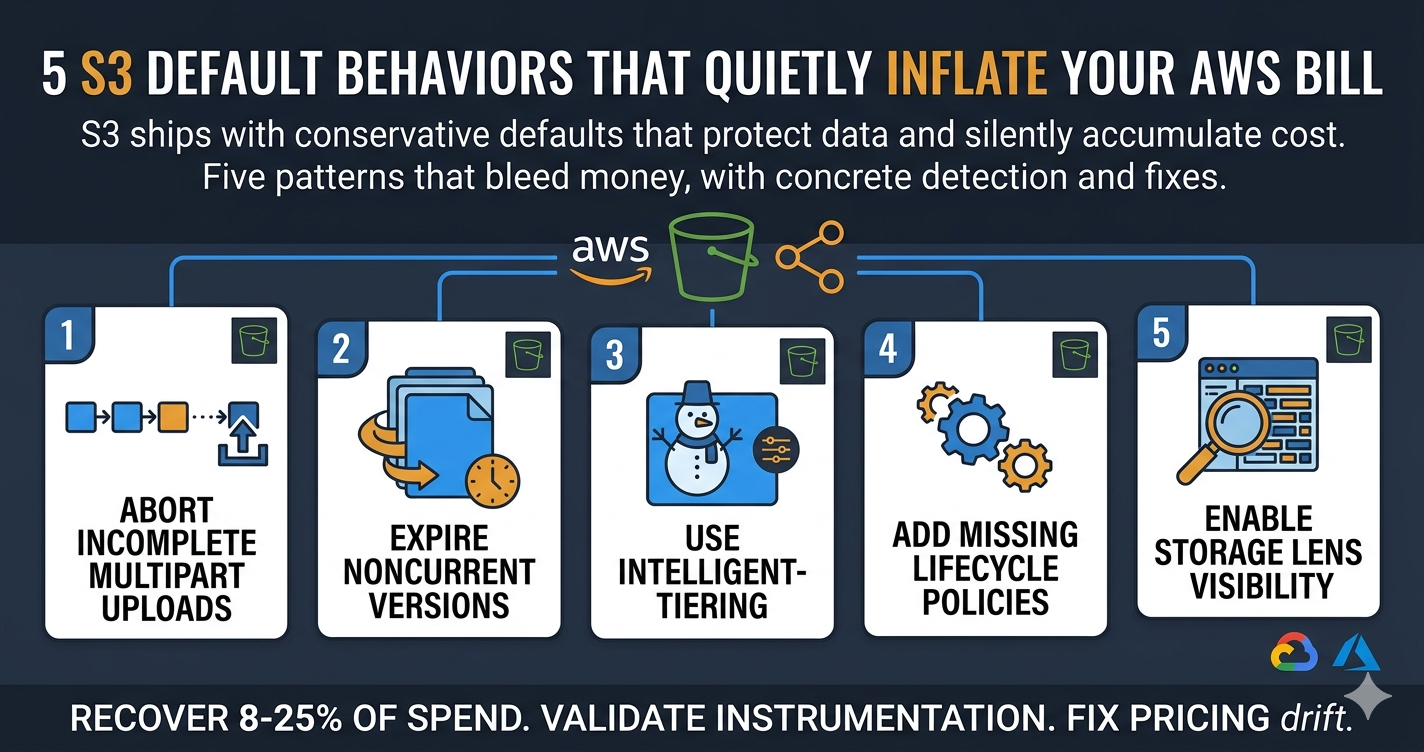
S3 bills look easy to read until you start asking why they keep going up. Most of the answer lives in the defaults. AWS ships S3 with conservative settings that protect your data, which is the right call for safety, but those same defaults silently accumulate cost when nobody is paying attention.
This article walks through the five S3 default behaviors that most teams overlook: incomplete multipart uploads sitting forever, noncurrent object versions accumulating without expiration, the default Standard storage class for cold data, missing or weak lifecycle policies, and the absence of inventory visibility through Storage Lens. For each pattern, you get the specific detection query and the concrete fix. None of these require code changes or architecture review. They are config-level wins that usually pay for themselves in the first month.
If you've already worked through our AWS Cost Optimization Guide, this article zooms in on the storage layer specifically.
Why Defaults Are the Real Problem in S3
S3 was designed for safety first. Nothing is deleted unless you explicitly ask for it. Versioning protects against accidental overwrites. Multipart uploads support large files. Storage classes let you tier cold data. All of this is correct from a data integrity standpoint.
The cost problem shows up because the defaults assume someone will eventually configure the cleanup, retention, and tiering rules. In practice, most teams do not. A bucket gets created for a project, the project ships, the bucket keeps receiving writes, and three years later it holds 40 terabytes of unstructured artifacts that nobody has audited.
The patterns below are not exotic. They are the same five issues we see on almost every AWS account that has been running for more than 18 months without a dedicated FinOps practice.
Pattern 1: Incomplete Multipart Uploads That Never Cleared
When a client uploads a file larger than 100 MB, the SDK splits it into parts and sends them in parallel. If the upload is interrupted (network failure, process crash, deploy restart), the parts that did upload remain in the bucket as in-progress multipart objects. They are not visible through the standard S3 console listing. They do not appear when you aws s3 ls. But you pay for the storage every month.
A team that runs nightly backups, image processing, or video encoding pipelines accumulates these silently. We have seen accounts with multi-terabyte multipart upload graveyards on buckets that looked nearly empty in the console.
Detection
Use the AWS CLI to list incomplete multipart uploads bucket-by-bucket:
aws s3api list-multipart-uploads --bucket your-bucket-name \
  --query 'Uploads[*].[Key,Initiated,UploadId]' --output table
For a fleet view, S3 Storage Lens (covered in Pattern 5) surfaces "incomplete multipart upload bytes" as a metric across all buckets. If you do not have Storage Lens on yet, run a script across your bucket inventory.
Fix
Add a lifecycle rule that aborts incomplete multipart uploads after 7 days. This is the single highest leverage S3 lifecycle rule and it should exist on every bucket without exception:
{
  "Rules": [
    {
      "ID": "AbortIncompleteMultipartUploads",
      "Status": "Enabled",
      "Filter": {},
      "AbortIncompleteMultipartUpload": {
        "DaysAfterInitiation": 7
      }
    }
  ]
}
Apply this through your account-level S3 management policy or your infrastructure-as-code module. New buckets should inherit the rule by default.
Pattern 2: Noncurrent Versions Accumulating Forever
If you enabled S3 versioning to protect against accidental deletes, every overwrite creates a new version and keeps the old one as a noncurrent version. Without an expiration rule, those noncurrent versions stay forever and you pay full storage rates on each.
A bucket holding application logs that get rewritten daily, with versioning on but no expiration, doubles its storage cost every year. A bucket holding build artifacts that gets overwritten on every CI run can compound much faster.
Detection
Use S3 Storage Lens or run an inventory query:
aws s3api list-object-versions --bucket your-bucket-name \
  --query 'Versions[?IsLatest==false].[Key,VersionId,Size]' \
  --output table
For a programmatic check, query the S3 inventory report (CSV/Parquet output written to a separate bucket). The columns is_latest and size give you the exact noncurrent version footprint.
Fix
Lifecycle rule that expires noncurrent versions after a retention window appropriate to your data:
{
  "Rules": [
    {
      "ID": "ExpireNoncurrentVersions",
      "Status": "Enabled",
      "Filter": {},
      "NoncurrentVersionExpiration": {
        "NoncurrentDays": 30
      }
    }
  ]
}
The right window depends on your recovery requirements. 30 days is reasonable for most operational data. 90 days for compliance-relevant data. If you have legal hold requirements, retention is longer and you should be using Object Lock anyway.
Pattern 3: Standard Storage Class for Cold Data
Every object lands in S3 Standard unless you explicitly say otherwise. Standard is priced for frequent access. If your object gets accessed once a year, you are paying roughly 5 times more than you need to.
Standard-IA, One Zone-IA, Glacier Instant Retrieval, Glacier Flexible Retrieval, and Glacier Deep Archive each target different access patterns at progressively lower storage cost. The catch is that you have to know your access patterns to pick the right tier, and most teams do not measure them.
Detection
S3 Intelligent-Tiering moves objects between access tiers automatically based on actual access patterns. Use it for any bucket where you cannot characterize access patterns ahead of time. The monitoring fee is negligible compared to the savings on cold data.
For buckets where you do know the pattern, S3 Storage Lens gives you "Bytes by Storage Class" so you can see how much of your data sits in Standard vs. cheaper tiers.
aws s3api list-objects-v2 --bucket your-bucket-name \
  --query 'Contents[*].[Key,StorageClass,LastModified,Size]' \
  --output table
If most of your objects are in STANDARD and have a LastModified older than 90 days, you are leaving money on the table.
Fix
Three options, in order of effort:
Option A: Intelligent-Tiering for entire buckets where access patterns are unclear. Set the default storage class on PUT operations to INTELLIGENT_TIERING. Existing objects can be transitioned via a lifecycle rule. Best fit for log archives, machine learning training datasets, and analytics intermediates.
Option B: Lifecycle rules with explicit transitions for buckets where you know the pattern. Standard for the first 30 days, Standard-IA at 30 days, Glacier Instant Retrieval at 90 days, Glacier Flexible Retrieval at 365 days. Best fit for compliance archives and known cold data.
Option C: Default storage class on the bucket. Set the default to STANDARD_IA or INTELLIGENT_TIERING for new objects so the right tier is applied at write time. Best fit for new buckets where you can architect for tiering from day one.
Pattern 4: Lifecycle Policies That Are Missing or Misconfigured
This is the meta-pattern that the first three patterns sit underneath. Lifecycle rules are how you operationalize cleanup, retention, and tiering at the bucket level. Most accounts have lifecycle rules on a fraction of their buckets, and the rules they do have are often wrong.
Common misconfigurations we see:
- A rule that transitions to Glacier but never expires. The data sits in Glacier forever even though it has no business value.
- A rule that targets a prefix but the application started writing to a different prefix. The rule does nothing.
- A rule that conflicts with another rule on the same bucket. AWS applies the more permissive one, which is usually not what you intended.
- A rule with a
Filterthat nobody remembers writing, scoped to a tag that no object has.
Detection
List lifecycle rules across all buckets:
for bucket in $(aws s3api list-buckets --query 'Buckets[*].Name' --output text); do
  echo "=== $bucket ==="
  aws s3api get-bucket-lifecycle-configuration --bucket $bucket 2>/dev/null \
    --query 'Rules[*].[ID,Status,Filter,Transitions,Expiration,NoncurrentVersionExpiration]' \
    --output table
done
Audit findings to focus on:
- Buckets with no lifecycle rules at all
- Rules with
Status: Disabled - Rules that transition without expiring
- Rules with prefix or tag filters that no object matches
Fix
Standardize on a baseline lifecycle policy template that every bucket inherits unless explicitly overridden. The template should always include:
- Abort incomplete multipart uploads after 7 days (Pattern 1)
- Expire noncurrent versions after 30 to 90 days (Pattern 2)
- Transition cold data to a cheaper tier or use Intelligent-Tiering (Pattern 3)
- An explicit expiration date for any data classified as transient
Pattern 5: No Storage Lens Means No Inventory Visibility
S3 Storage Lens is the AWS-native dashboard for S3 metrics across an entire account or organization. It surfaces the metrics that catch all four prior patterns: incomplete multipart upload bytes, noncurrent version count, bytes by storage class, lifecycle rule coverage. Most teams either have it disabled, have it enabled at the free tier (which limits metrics and history), or have never opened the dashboard.
The free tier of Storage Lens covers the basic metrics. Advanced metrics (which include the activity metrics needed for cost analysis) cost about $0.20 per million objects monitored, which is negligible compared to what it surfaces.
Detection
Open the S3 Storage Lens dashboard:
https://console.aws.amazon.com/s3/lens
If you see "default-account-dashboard" with metrics, you are at least at the free tier. If you see nothing or the dashboard has not been configured, you are blind to your own S3 inventory.
Fix
Enable Storage Lens at the account or organization level with advanced metrics. The configuration takes about 15 minutes:
- S3 Console, Storage Lens, Create dashboard
- Scope: entire account, or a specific organizational unit
- Metrics: Advanced metrics and recommendations
- Export (optional but recommended): write daily reports to a separate bucket for offline analysis
A 30-Minute Audit Sequence
If you have never run any of these checks, here is a 30-minute first pass that captures most of the easy wins:
- Minute 0-5: Enable S3 Storage Lens with advanced metrics if not already on. The dashboard will populate during the rest of the audit.
- Minute 5-15: Run the multipart upload detection script across your top 20 buckets by storage cost. Apply the abort-incomplete-multipart lifecycle rule to every bucket that does not already have it.
- Minute 15-25: List buckets with versioning enabled. For any bucket that does not have a noncurrent version expiration rule, add one with a 30-day window.
- Minute 25-30: Identify the top 5 buckets by storage cost from your Cost Explorer. Open Storage Lens, look at "Bytes by Storage Class" for each. If most data is Standard and older than 90 days, queue Intelligent-Tiering or a lifecycle transition for the next maintenance window.
Where to Go From Here
S3 storage waste is one corner of AWS cost management. The same audit pattern applies to other AWS services that ship with safe defaults: idle EC2 volumes, unused Elastic IPs, snapshots without retention rules, NAT Gateway traffic that should have been a VPC endpoint. Our AWS Cost Optimization Guide covers the broader surface area.
If you are running multi-cloud, the equivalent patterns exist in GCP Cloud Storage and Azure Blob Storage, with different default behaviors and different lifecycle rule syntax. The audit logic is the same: find the cleanup, retention, and tiering rules that should exist and probably do not.
For a foundation on cross-cloud FinOps practice, see our Multi-Cloud Cost Management Guide.
Tired of running the same S3 audit script every quarter? Brain Agents AI detects incomplete multipart uploads, unexpired noncurrent versions, and Standard-class objects that have not been accessed in 90 days across your AWS account (plus the equivalent patterns on GCP and Azure), then recommends the lifecycle rules that close each gap and tracks the recovered spend month over month.